Running a physical store and an online shop at the same time sounds straightforward until you realize your inventory is in two places, your sales data doesn’t match up, and someone just ordered something online that you sold in-store an hour ago.
That’s the problem POS website integration solves. When your point of sale system and your website talk to each other, everything syncs automatically. Inventory, orders, customer data, and reporting all live in one connected system instead of two separate ones you have to manage manually. Understanding what is a modern point of sale (POS) system is and how it bridges the gap between channels is the first step toward automation.
This guide explains how to integrate POS with a website, what to look for before you start, and how to avoid the most common mistakes businesses make during the process.
What is POS Website Integration?
POS website integration is the connection between your in-store point of sale system and your online sales platform. When properly integrated, the two systems share data in real time.
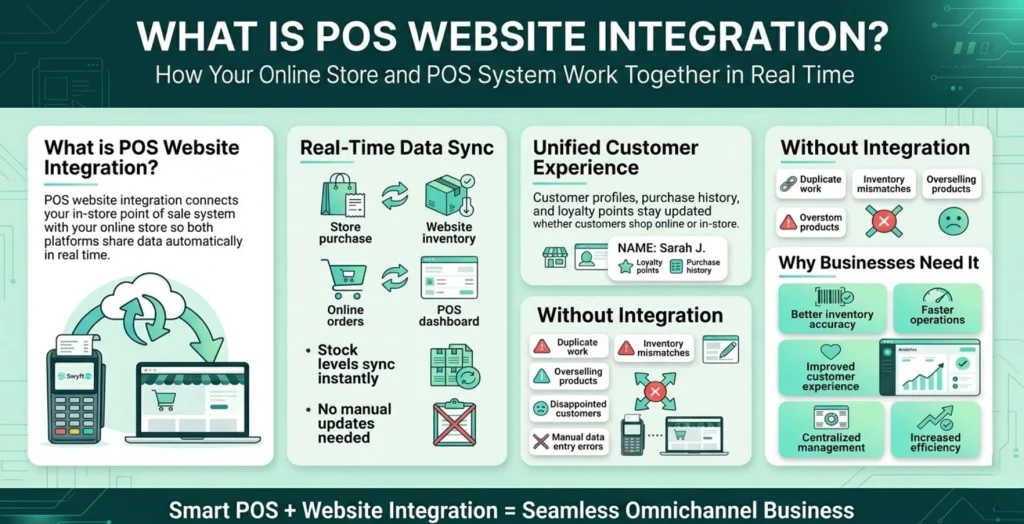
That means when a customer buys something in your store, your website inventory updates automatically. When an online order comes in, it appears in your POS dashboard. Customer profiles, purchase history, and loyalty points stay consistent whether someone shops in person or online. It essentially transforms your traditional retail operation into a highly efficient cloud POS system that connects your entire business infrastructure.
Without integration, you’re managing two separate systems. That creates duplicate work, data inconsistencies, and the kind of stock errors that lead to overselling or disappointed customers.
Why POS Website Integration Matters
| Without Integration | With Integration |
| Manual inventory updates across two systems | Inventory syncs automatically in real time |
| Sales data split between POS and website | Unified reporting across all channels |
| Customer records are stored separately | Single customer profile across online and in-store |
| Risk of overselling out-of-stock items | Accurate stock levels prevent overselling |
| Time-consuming manual reconciliation | Automated sync reduces admin workload |
| Inconsistent pricing and promotions | Pricing and discounts apply consistently everywhere |
Step 1: Understand What You Need Before You Start
Before touching any settings or plugins, get clear on what you actually need from the integration. Not every business needs the same things, and knowing your requirements upfront saves a lot of backtracking later.
Ask yourself:
• Do you need real-time inventory sync, or is daily sync enough?
• Do you sell the same products online and in-store, or different ranges?
• Do you need customer data to be shared between both channels?
• Do you run promotions or loyalty programs that need to apply everywhere?
• How important is unified reporting across both channels?
The answers shape which integration method makes the most sense for your business when you integrate the POS with the website. For example, retailers need robust stock tracking features to keep up with multi-channel sales, making it vital to evaluate essential POS inventory management features before deciding on a setup.
Step 2: Choose the Right Integration Method
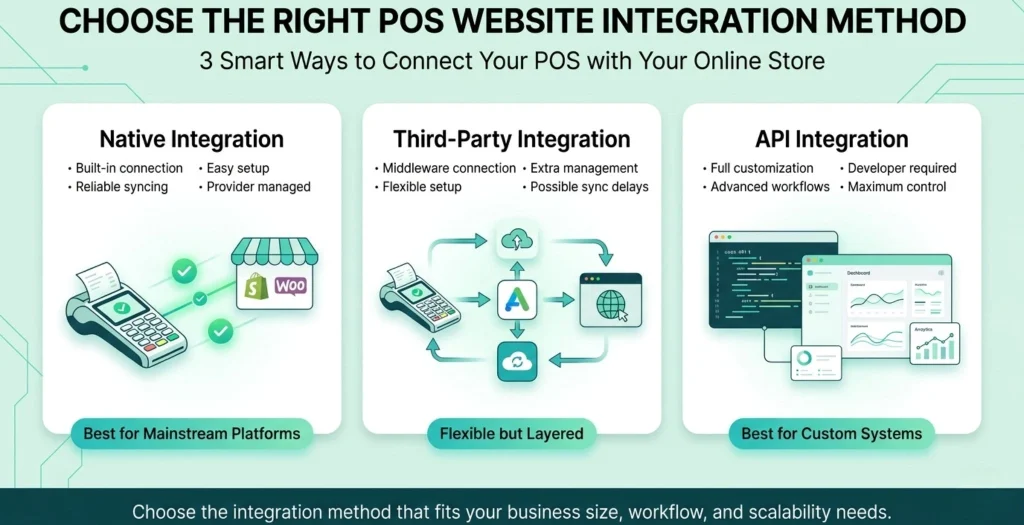
There are three main ways to integrate POS with a website, each suited to different business sizes and technical setups.
Native Integration
Many modern POS systems come with built-in integrations for popular e-commerce platforms. This is the simplest option and usually the most reliable because the connection is maintained by the POS provider.
• No third-party tools required
• Setup is typically guided and straightforward
• Updates and compatibility are handled by the provider
• Best for businesses using mainstream platforms like Shopify, WooCommerce, or BigCommerce
Third-party Integration Apps
If your POS and website platform don’t have a direct native connection, middleware apps like Zapier, SKULabs, or Kosmos eSync can bridge the gap. These tools act as translators between the two systems.
• Works when native integration isn’t available
• More flexible, but adds another layer to manage
• Some sync delays depending on the tool and plan
• Additional monthly cost for the middleware service
API Integration
For businesses with more complex needs or custom-built websites, a direct API connection gives the most control. This connects your POS and website at a deeper technical level and allows for custom data flows.
• Maximum flexibility and customization
• Requires developer involvement to set up and maintain
• Best for businesses with unique workflows or custom platforms
• Higher upfront cost but lowest ongoing dependency on third-party tools
Integration Method Comparison
| Method | Technical Skill Needed | Cost | Best For |
| Native integration | Low | Usually included | Most small to mid-size businesses |
| Third-party middleware | Low to medium | Monthly subscription | Businesses with incompatible systems |
| API integration | High | Developer fees | Custom platforms or complex workflows |
Step 3: Check Compatibility Between Your Systems
Not every POS integrates with every e-commerce platform. Before committing to an integration path, confirm that your specific POS system and website platform are compatible.
Common POS and e-commerce platform pairings that support native integration:
| POS System | Compatible E-commerce Platforms |
| Square | Squarespace, WooCommerce, BigCommerce, Ecwid |
| Shopify POS | Shopify (native, seamless) |
| Lightspeed | Shopify, WooCommerce, Magento |
| Clover | WooCommerce, BigCommerce via third-party |
| Toast | Online ordering via Toast’s own platform |
| Swyft POS | Check with Swyft POS for current integration options |
If you are a brick-and-mortar merchant utilizing custom digital setups, you must explore modern software providers. For instance, you can learn about dedicated POS services that are built with flexible integration architectures to handle modern omnichannel workloads effortlessly.
If your current POS doesn’t support your website platform natively, a middleware solution or API build may be necessary. In some cases, it may be worth studying how to switch from your old POS to transition seamlessly to a more unified ecosystem.
Step 4: Map Your Data Before Syncing
One of the most overlooked steps in any POS website integration is data mapping. Before you connect the two systems, make sure your product data, categories, and customer records are clean and consistent on both sides.
Common data issues to fix before integrating:
• Product names or SKUs that don’t match between your POS and website
• Duplicate product listings that will create confusion after sync
• Outdated inventory counts that will carry over incorrectly
• Inconsistent pricing between in-store and online records
• Customer records with missing or incorrect contact information
Taking a few hours to clean your data before connecting the systems prevents a messy sync that’s much harder to untangle after the fact. This clean-up is also the perfect time to make sure your financial categories align perfectly, especially if you plan on integrating POS with accounting tools later on to handle automated bookkeeping.
Step 5: Set Up and Test the Integration
Once your systems are compatible and your data is clean, you’re ready to connect them. The exact process depends on your chosen method, but the general sequence looks like this:
1. Access the integration settings in your POS dashboard or e-commerce platform
2. Authenticate the connection between the two systems using API keys or account login
3. Configure sync settings — decide what data syncs, how often, and in which direction
4. Run a test sync with a small number of products before enabling full sync
5. Verify that inventory, pricing, and product data appear correctly on both sides
6. Process a test transaction on both channels and confirm the data updates correctly
7. Enable full sync once everything checks out
Don’t skip the testing phase. A misconfigured sync can push incorrect inventory counts or overwrite good data with outdated records. Testing with a small product set first catches these issues before they affect your whole catalog.
Step 6: Train Your Team
A POS website integration changes how your team works day to day. Staff who previously updated inventory manually now need to understand that the system handles it automatically, and that manual overrides can create conflicts.
Key things to cover with your team:
• How inventory updates flow between the two systems and why manual changes should be avoided
• Where to process returns and refunds to ensure both systems update correctly
• How to handle edge cases like items that are in-store only or online only
• Who to contact if sync errors or discrepancies appear
Common POS Website Integration Problems and How to Fix Them
| Standardize customer data capture at the point of sale | Likely Cause | Fix |
| Inventory counts don’t match | Sync not set to real-time or manual override made | Check sync settings, avoid manual stock edits |
| Products missing from website after sync | SKU mismatch between systems | Standardize SKUs before resyncing |
| Duplicate orders appearing in POS | Double integration or webhook misconfiguration | Review integration settings, remove duplicate connections |
| Prices differ between store and website | Price sync not enabled or wrong direction set | Enable price sync in both directions |
| Customer records not merging | Different email addresses used in-store vs online | Standardize customer data capture at point of sale |
What to Look for in a POS System That Integrates Well

If you’re evaluating a new POS system with website integration in mind, these are the features that make the biggest practical difference:
• Real-time inventory sync rather than batch updates
• Native integrations with your existing or planned e-commerce platform.
• Unified customer profiles that combine in-store and online purchase history
• Centralized reporting that shows sales from all channels in one dashboard
• Support for multi-location inventory if you operate more than one store
• Clear documentation and support for the integration setup process
The easier a POS makes integration, the less time you spend managing the connection and the more time you spend running your business.
Final Thoughts
Integrating your POS with your website isn’t just a technical upgrade. It’s a shift in how your business operates. When your in-store and online channels share data in real time, you spend less time on manual reconciliation, make fewer inventory mistakes, and give customers a more consistent experience wherever they shop.
The process takes some upfront planning, but once it’s running smoothly, the time and headaches it saves make it one of the most practical improvements a retail or hospitality business can make.
If you’re unsure where to start or which integration path fits your setup, reaching out to your POS provider is always the right first step. The right system will have the answers and the support to get you there.
FAQs
1. What does it mean to integrate POS with a website?
It means connecting your in-store point of sale system with your online store so they share data automatically. Inventory, orders, customer records, and pricing stay synchronized across both channels without manual updates.
2. Which e-commerce platforms support POS website integration?
Most major platforms, including Shopify, WooCommerce, BigCommerce, and Squarespace, support POS integrations either natively or through third-party middleware. The availability depends on which POS system you use and which platform your website runs on.
3. How long does it take to integrate a POS with a website?
A native integration with clean data can be set up in a few hours. More complex setups involving data cleanup, middleware configuration, or API development can take days or weeks. Testing and staff training add additional time regardless of the method used.
4. What happens to my inventory data when I connect the two systems?
The integration syncs inventory between your POS and website based on the settings you configure. Before connecting, it is important to clean and standardize your product data to avoid incorrect counts or duplicate listings being carried over during the initial sync.
5. Can I integrate a POS with a custom-built website?
Yes, but it typically requires an API integration, which involves developer work. Most POS systems provide API documentation for this purpose. If your website is built on a common platform, a native or middleware integration is usually simpler and more cost-effective.